Simplified Guide to the New Academic Affairs System
1. User Login
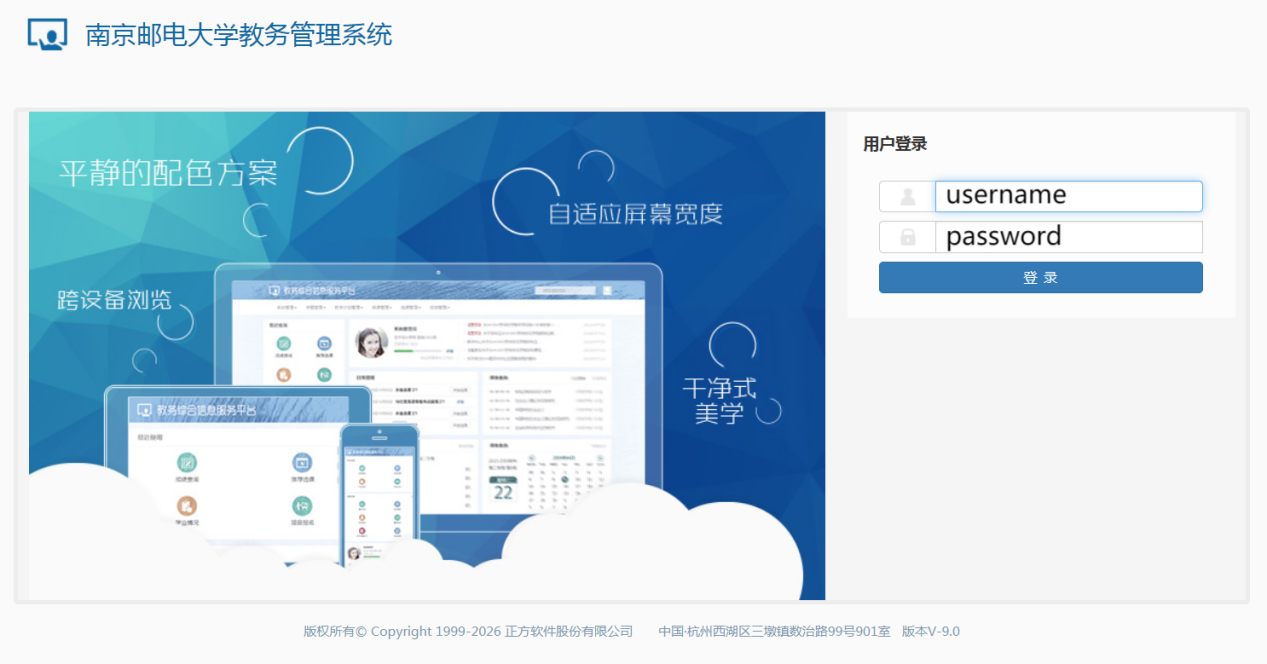
Method 1: Login via official website
· Website: http://jwglxt.njupt.edu.cn
· You must use this method for your first login to change your password.
· Username and initial password are both your student ID number.
· After first login, you will be asked to change your password. You can only use the system after changing it.
Method 2: Password-free login via Smart Campus
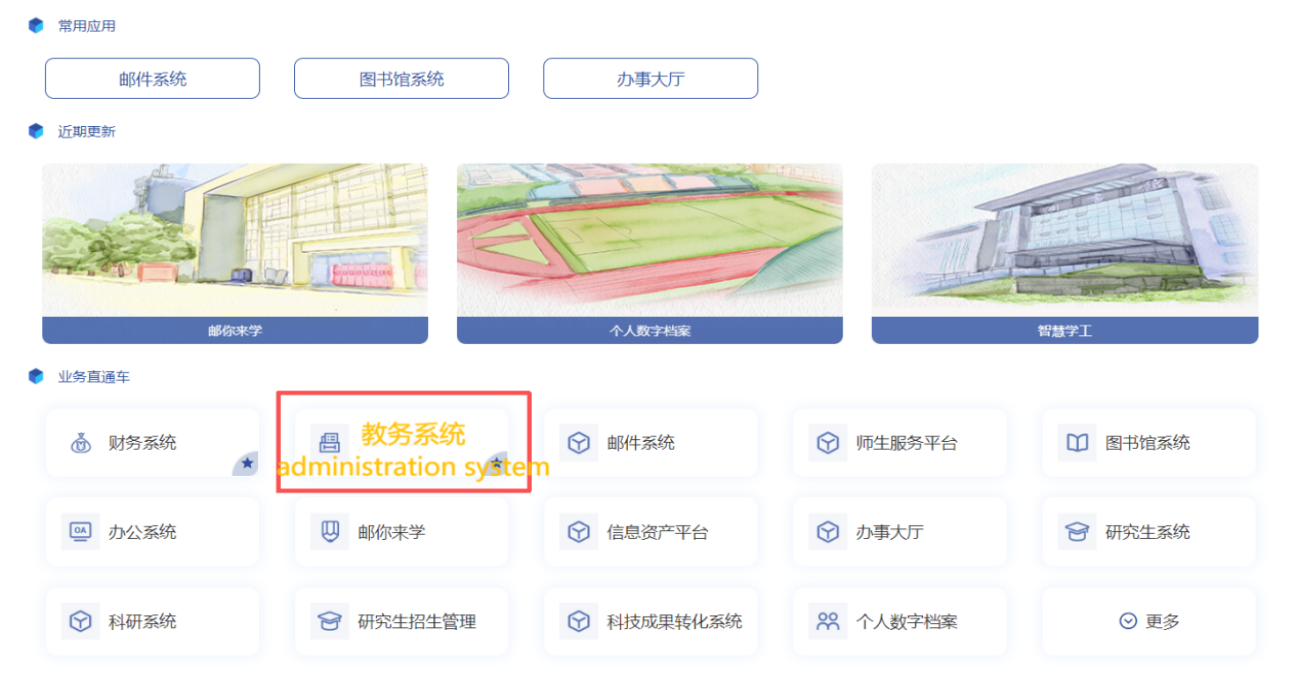
link: i.njupt.edu.cn/portal
Account:student ID
Original Password :Lxs_xxxxxx(last 6 digit of passport no.)
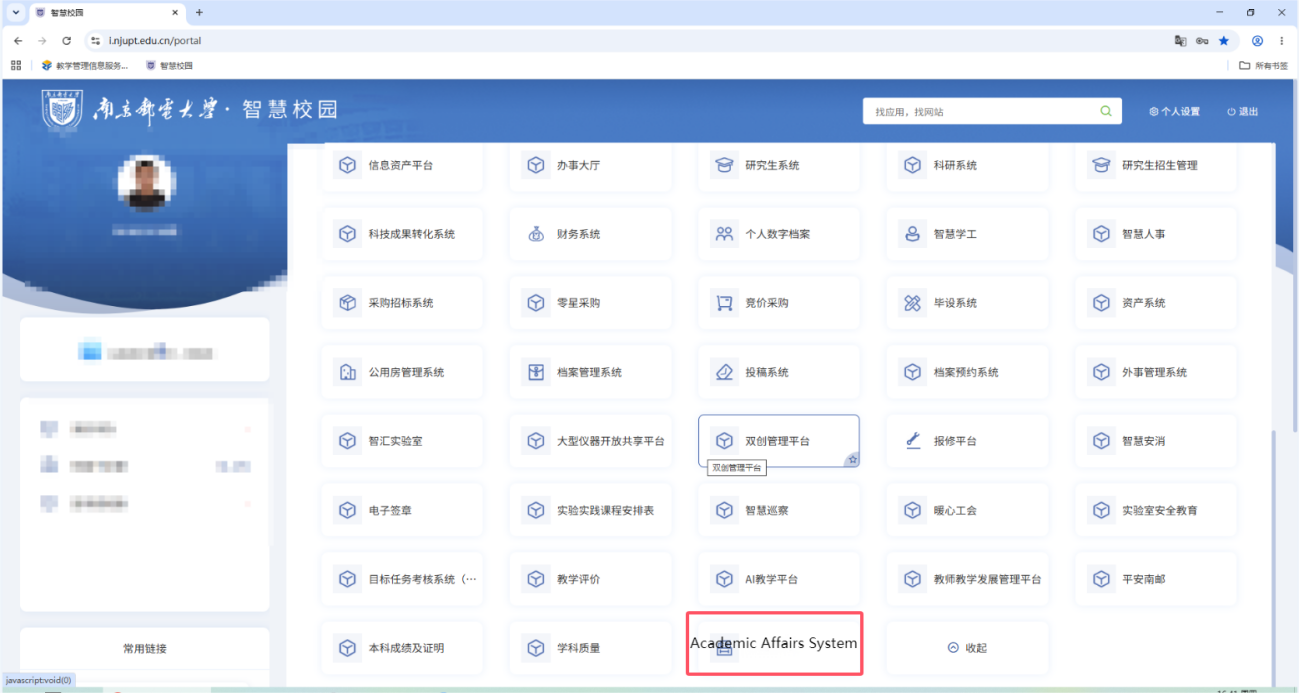
· Path: Service Express → Academic Affairs System
Important Notes
· First-time login must use Method 1 to change your password.
· You cannot change your password when using Method 2.
Password Reset Rules
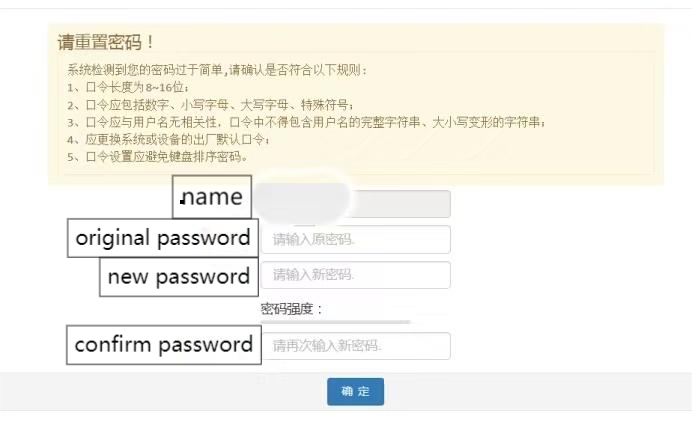
If your password is too simple, the system will ask you to reset it. The new password must follow these rules:
1. Length: 8–16 characters.
2. Must include numbers, lowercase letters, uppercase letters, and special symbols.
3. Must not be related to your username. It cannot contain the full username or its case-changed forms.
4. You must change the default password.
5. Do not use keyboard sequences.
To finish, enter your old password, new password, and confirm the new password, then click Confirm.
2. View Class Schedule
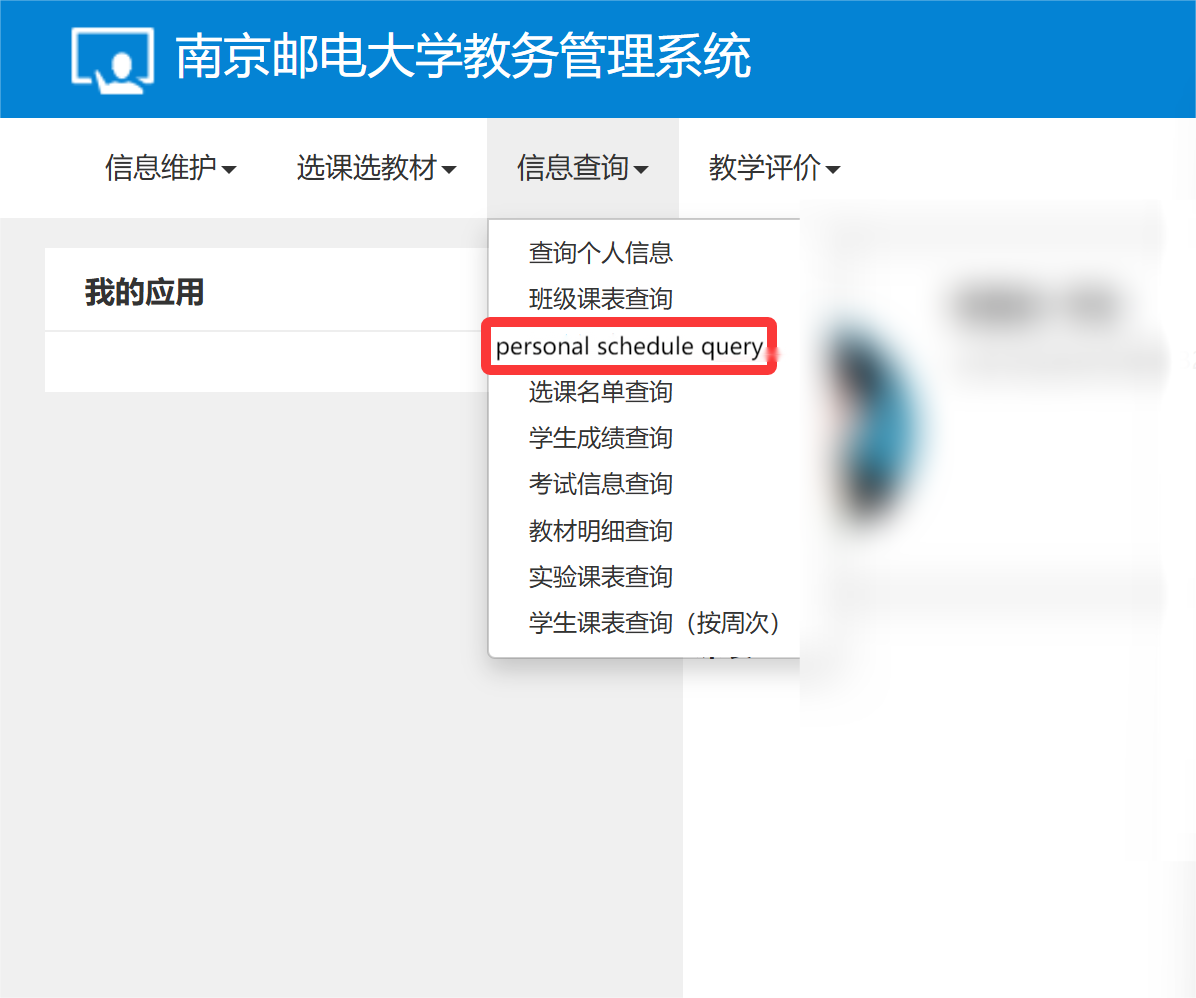
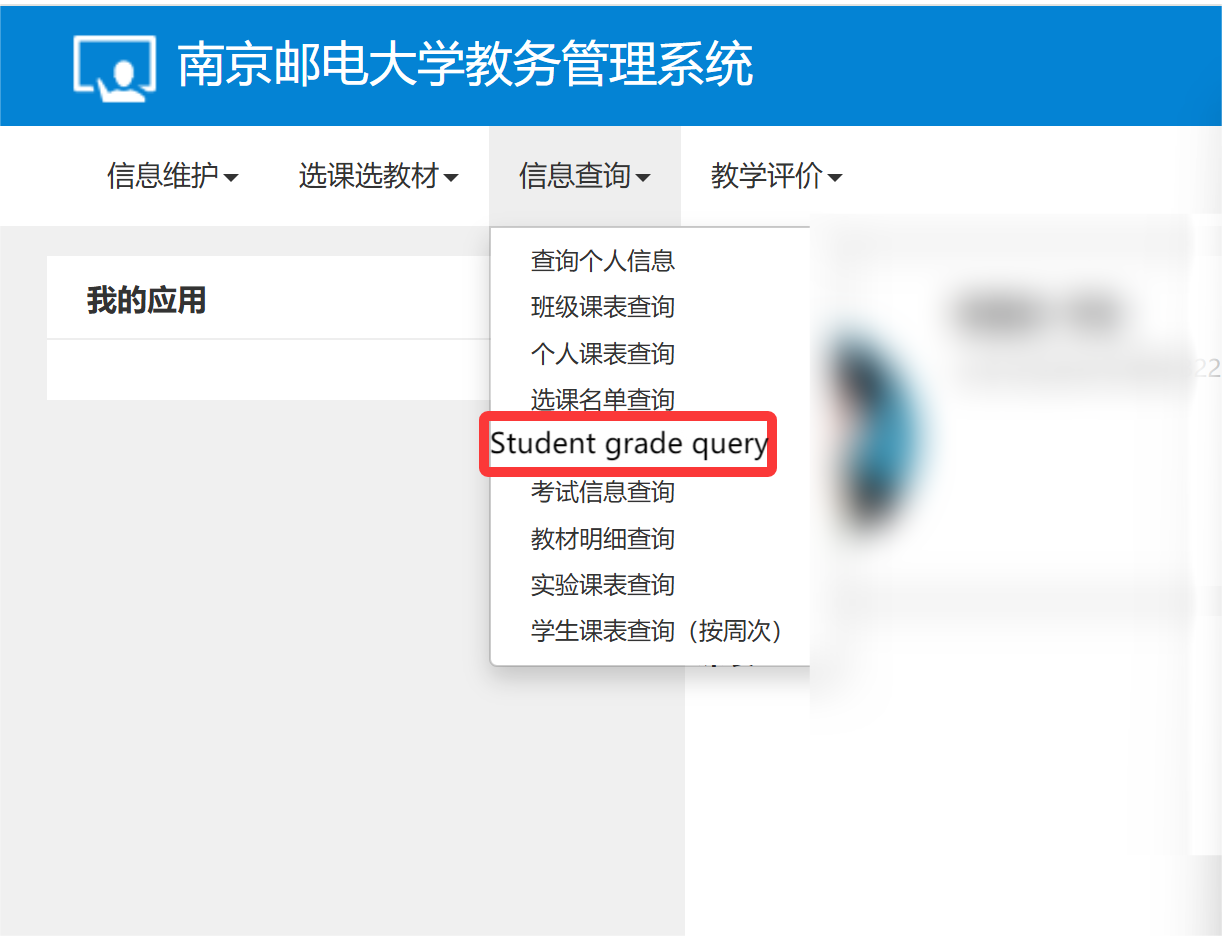
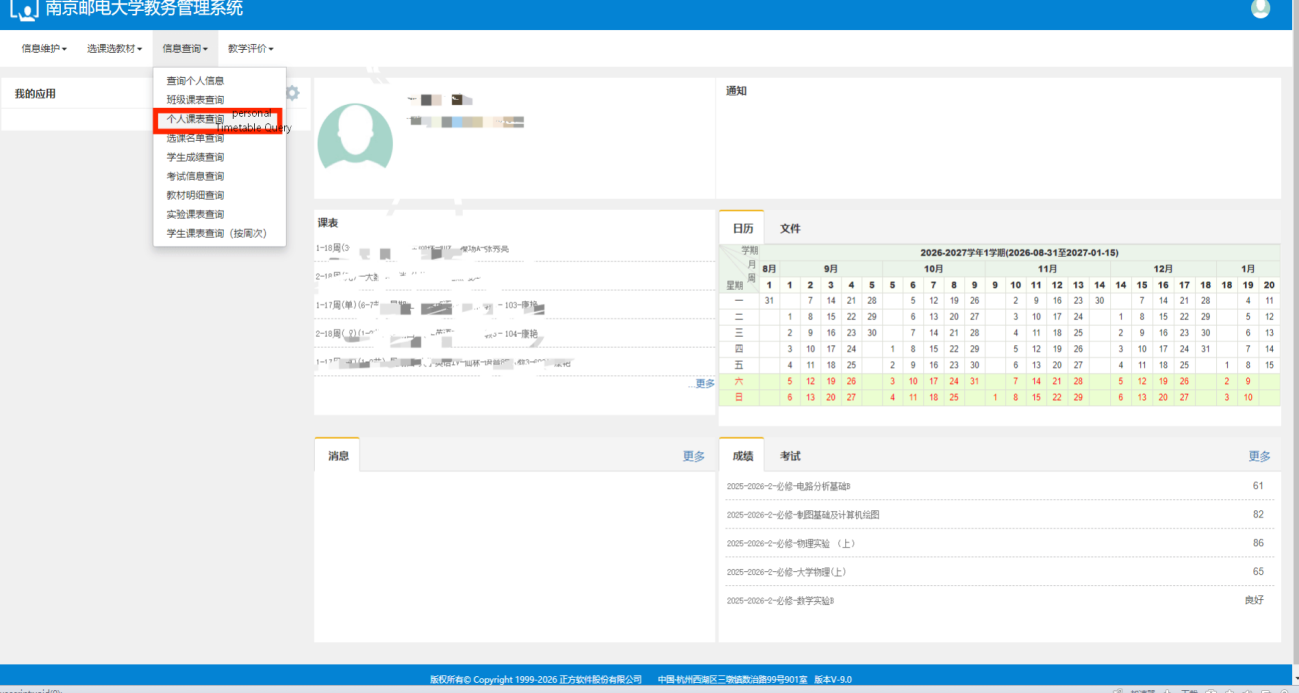
Path: Information Inquiry → Personal Timetable Inquiry
You can check your weekly class schedule and course arrangements here.
3. View Grades
Path: Information Inquiry → Student Grade Inquiry
You can check your exam results and academic records here.
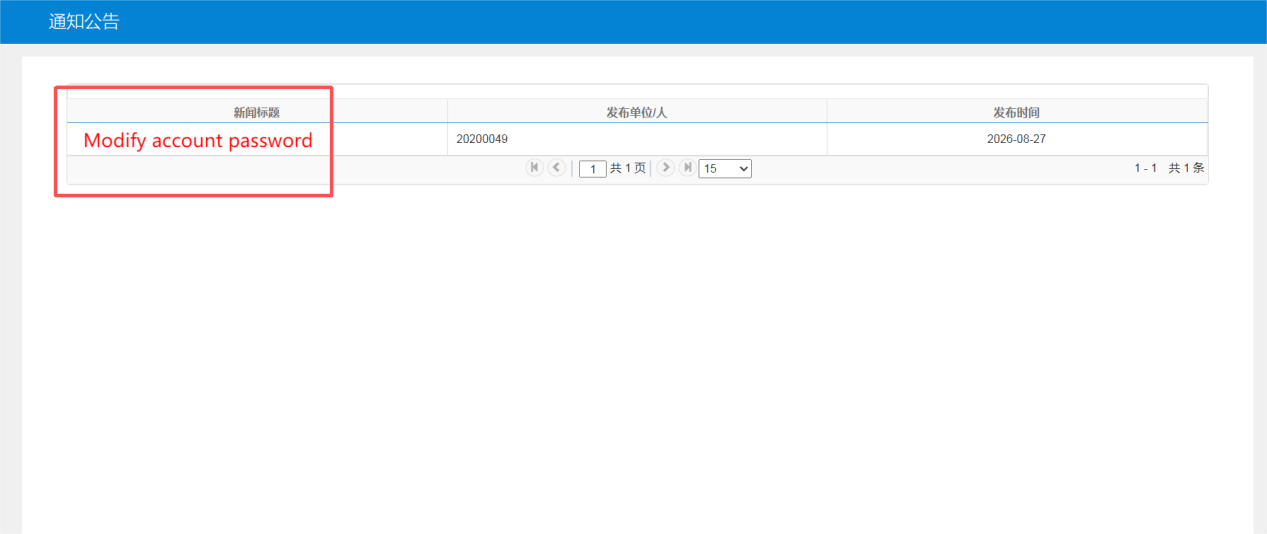
4. View System Announcements
· Future function updates will be posted through system notifications and operation manuals.
·When an administrator publishes a notice, the notice page will pop up automatically after you log in.
Simplified Guide to Course Selection (New Academic Affairs System)
1. Before You Select Courses
· Use a desktop computer. Mobile version is not ready.
· Use Google Chrome or Mozilla Firefox.
· Keep your personal training plan open to compare.
2. Types of Online Course Selection
· Major required courses: already added by the system; you only need to check.
· Major restricted electives: you must select by yourself.
· Course exemption.
· Retake: follow-class retake or separate-class retake.
· Make-up course selection: use "Teaching Program Registration".
·Advanced course enrollment: submit application form to your college and the Office of Academic Affairs for approval.
3. Important Notes
· Always compare with your personal training plan.
· Use a desktop computer only.
· Use Chrome or Firefox.
· The system may be slow at busy times. Please wait.
· If a restricted elective is in your plan but not shown, ask your college if the course is canceled.
·For other questions, ask classmates, senior students, counselors, or college teaching secretaries.
4. Login
· Go to the Smart Campus Portal: i.njupt.edu.cn/portal
· Find and click "Academic Affairs System".
5. After Login
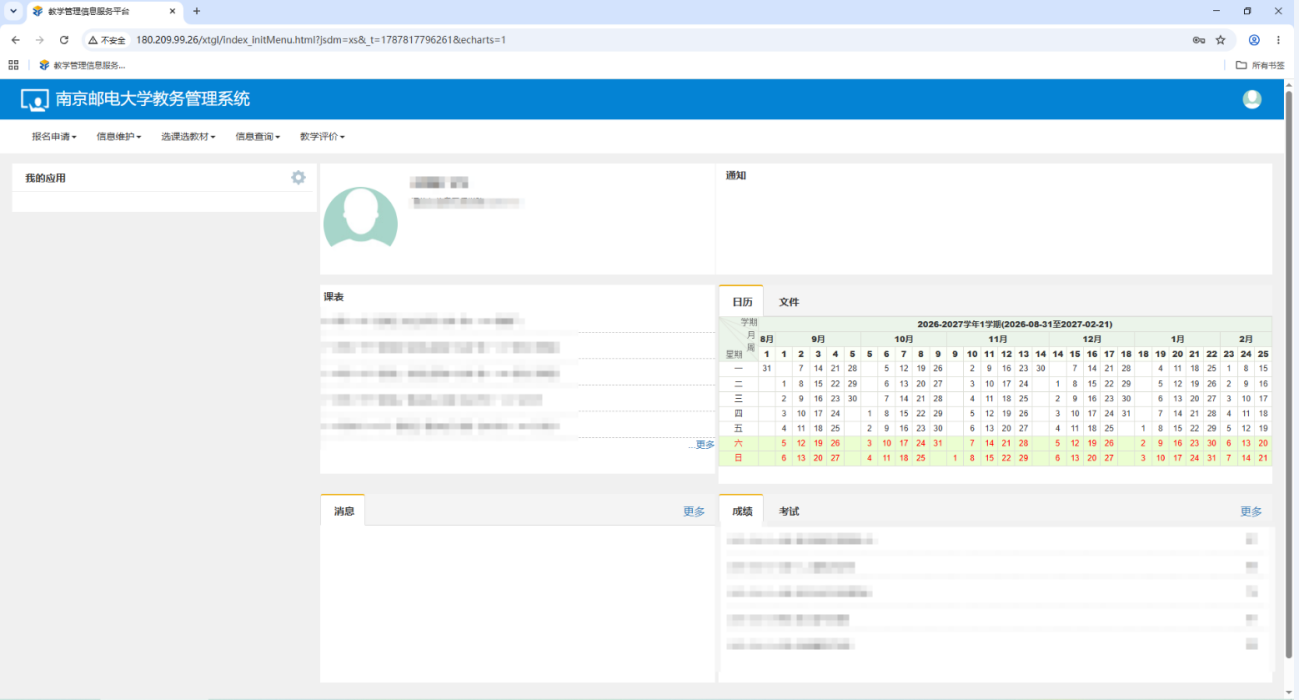
· You will see the Teaching Administration Platform.
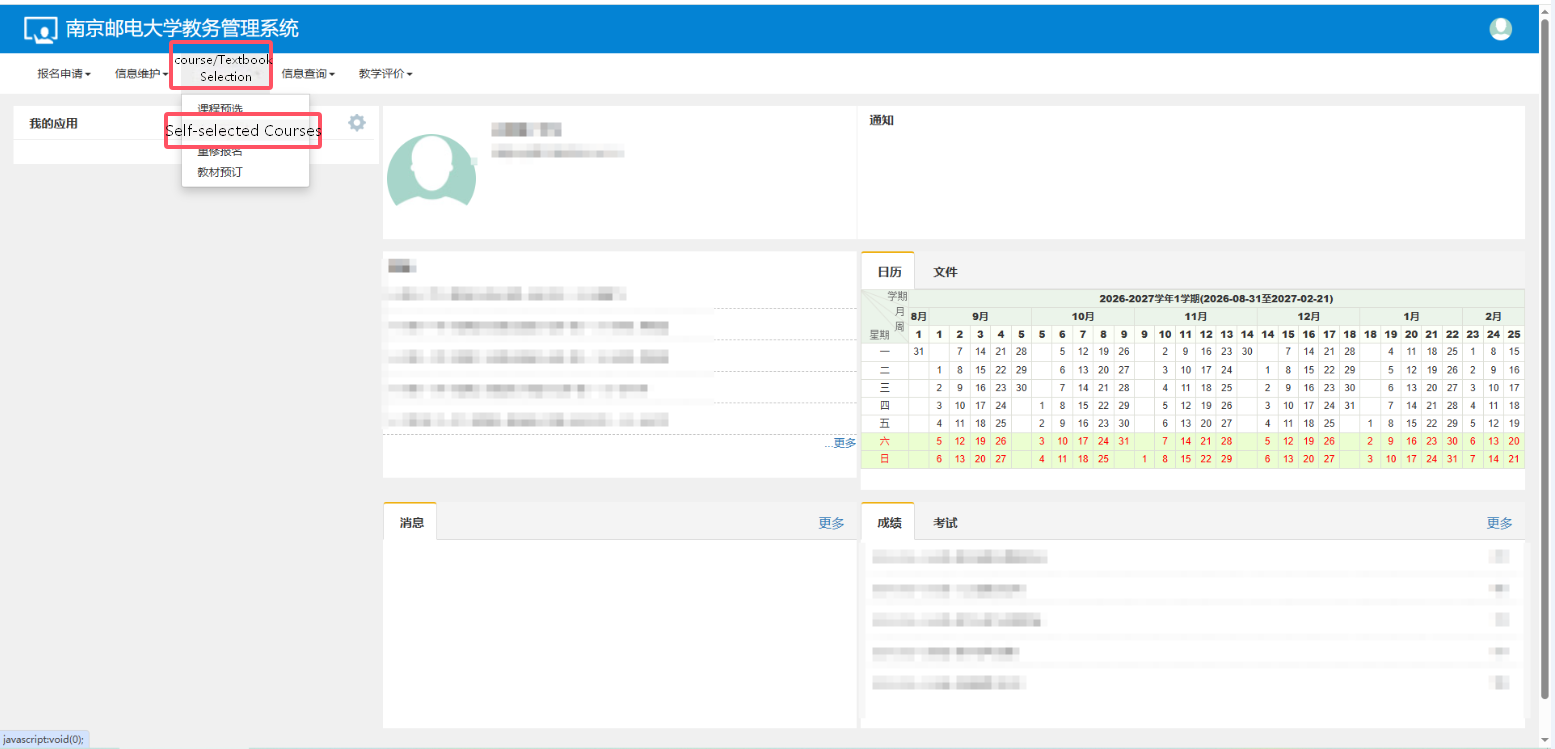
· Top menu includes: Registration, Information, Course Selection & Textbook, Inquiry, Evaluation, Notifications.
· The default page shows your current semester timetable.
6. Select Major Restricted Electives
· Go to Course Selection & Textbook Reservation → Self-service Course Selection.
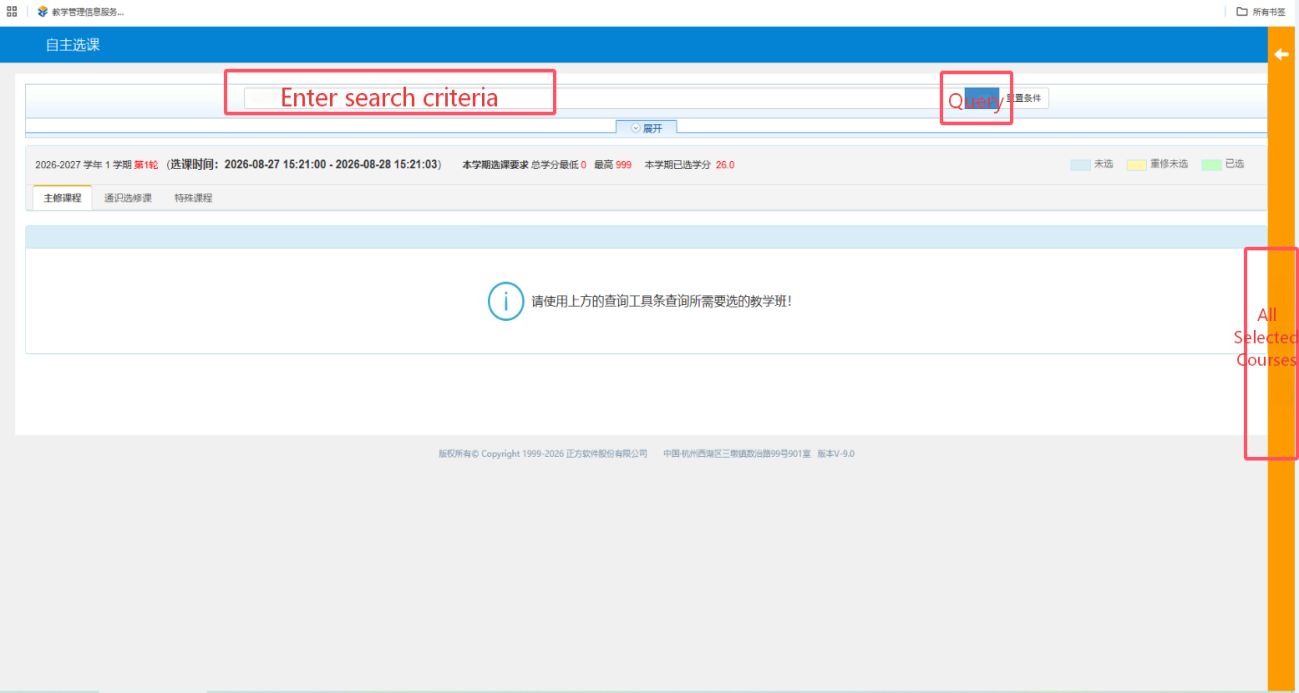
· Type course code or name in the search bar, then click Search.
· Results appear under "Major Courses".
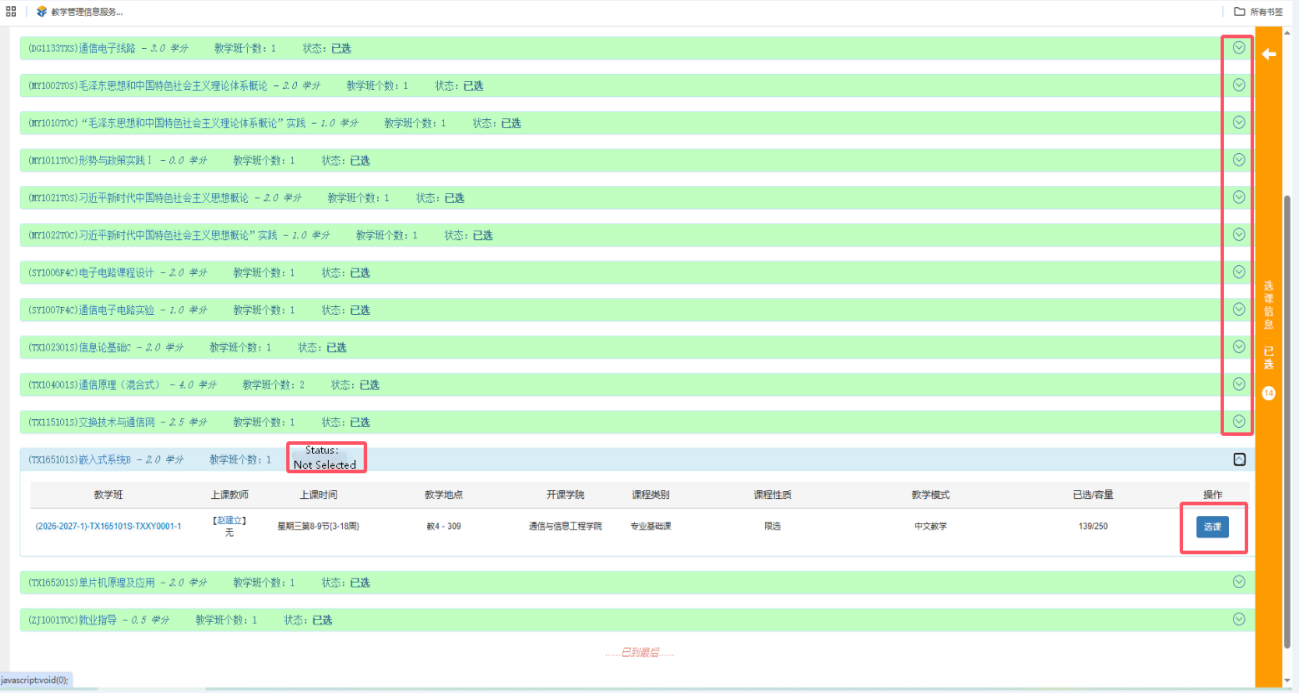
· Click the button on the right to see your selected courses.
·Illustration: Check course-selection status from each course entry.
8. Retake Course Selection
· From the homepage, click "Retake Registration".
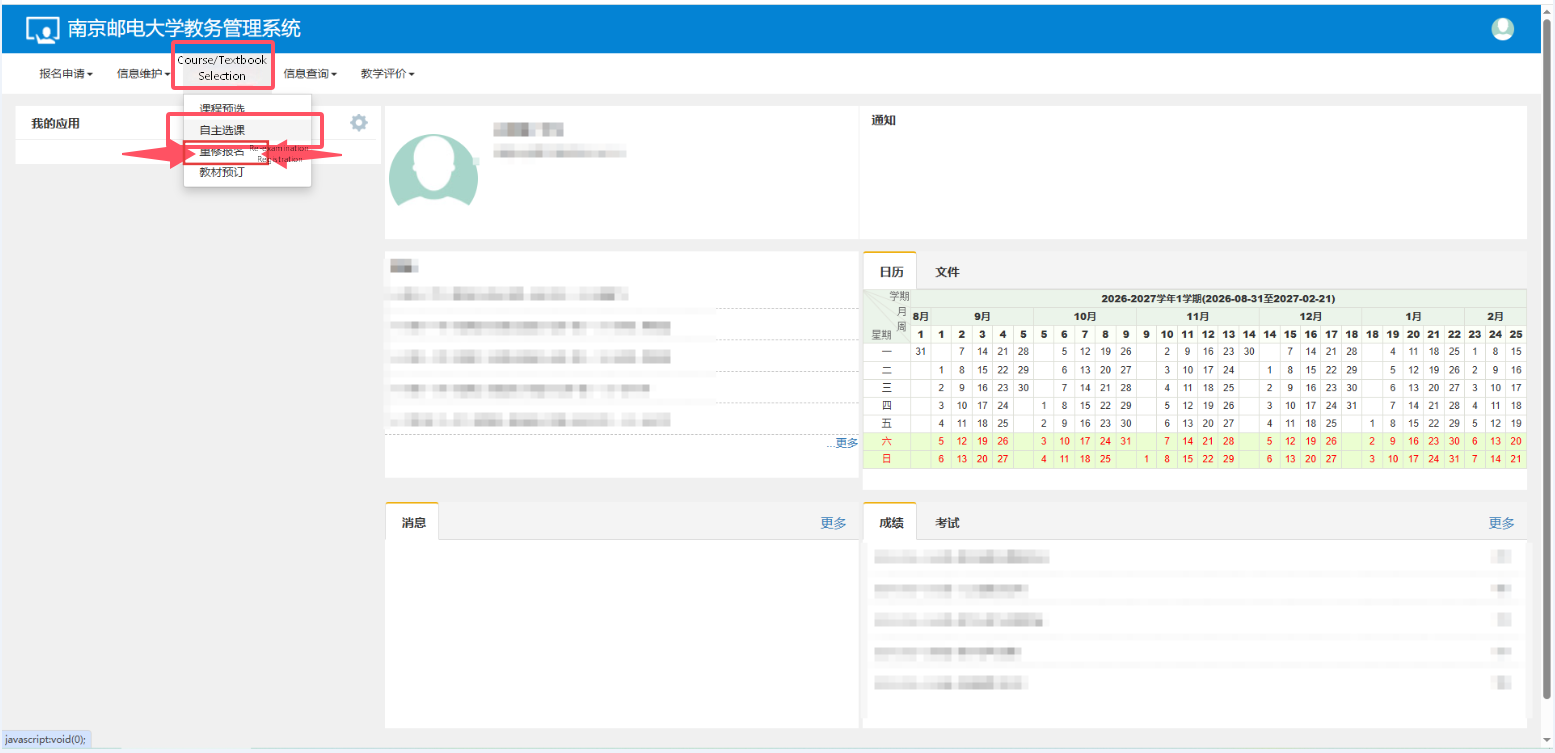
· Switch between "Follow-class Retake" and "Separate-class Retake".
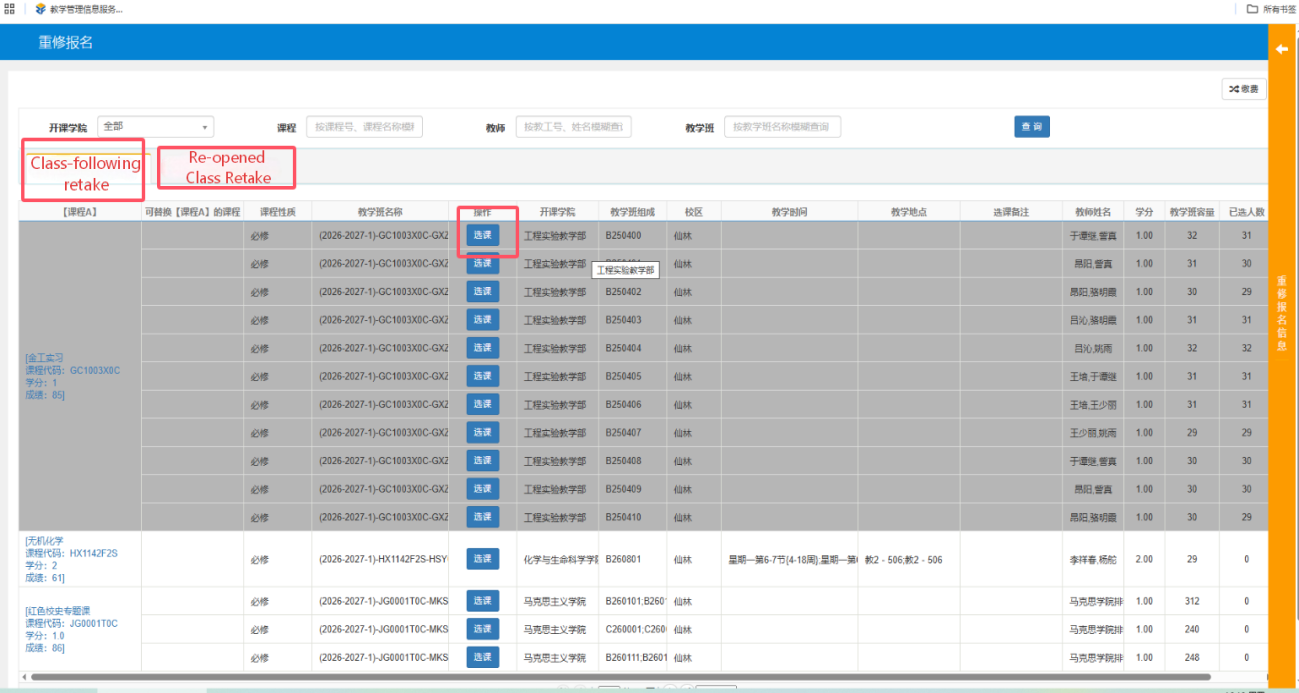
· Separate-class retake courses cannot be selected through follow-class.
· Always check the campus of the retake class.
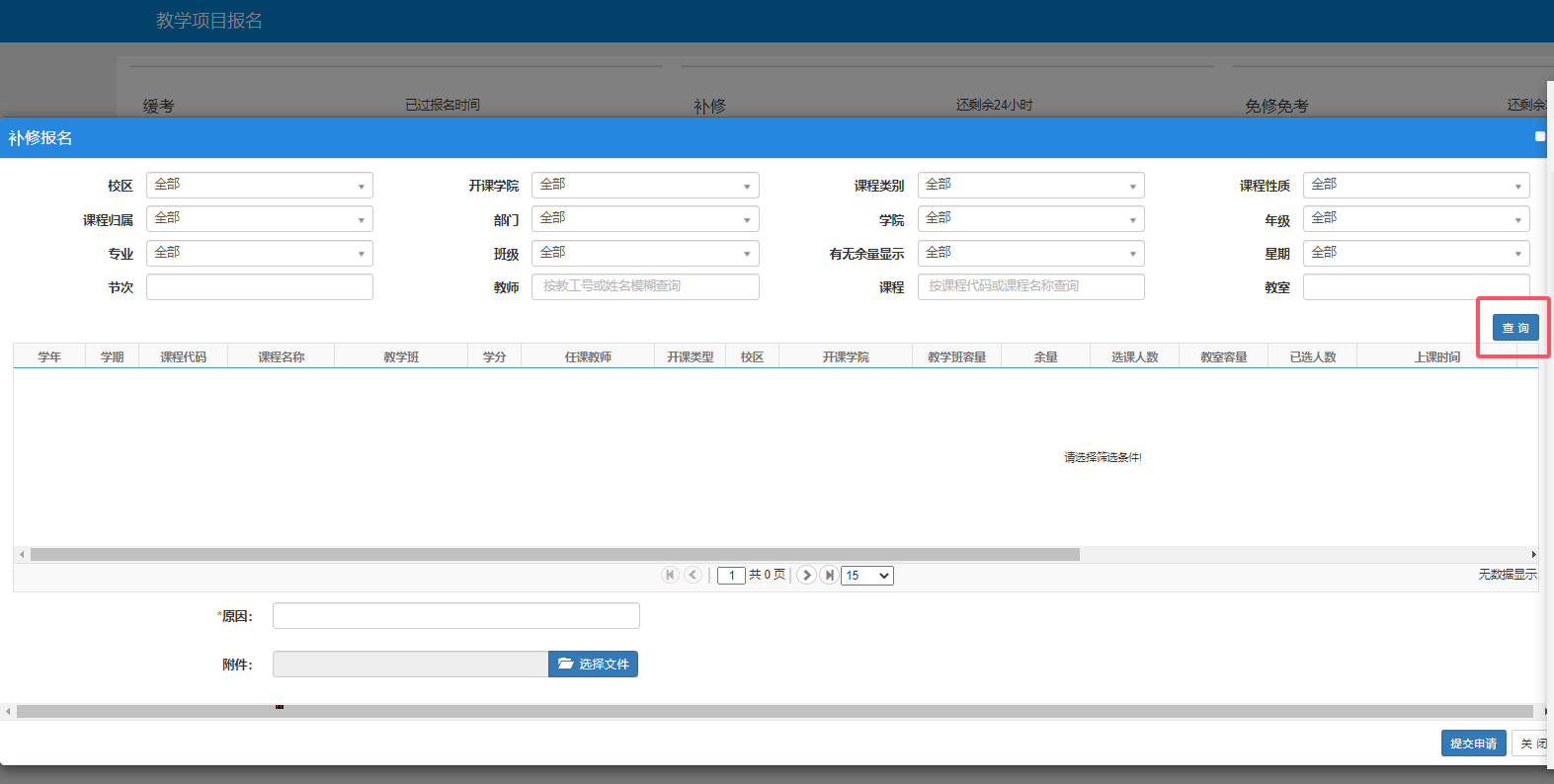
10. Make-up Course Selection
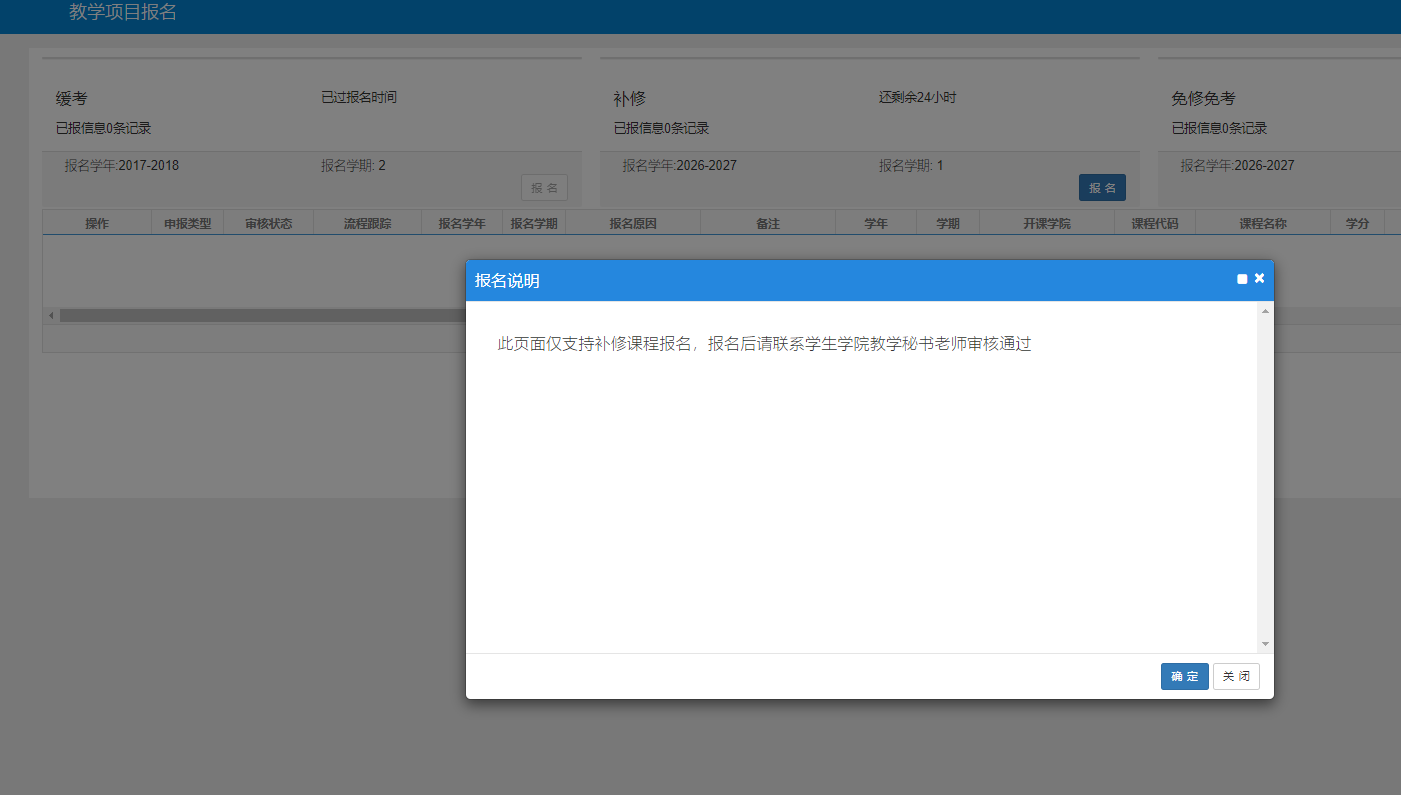
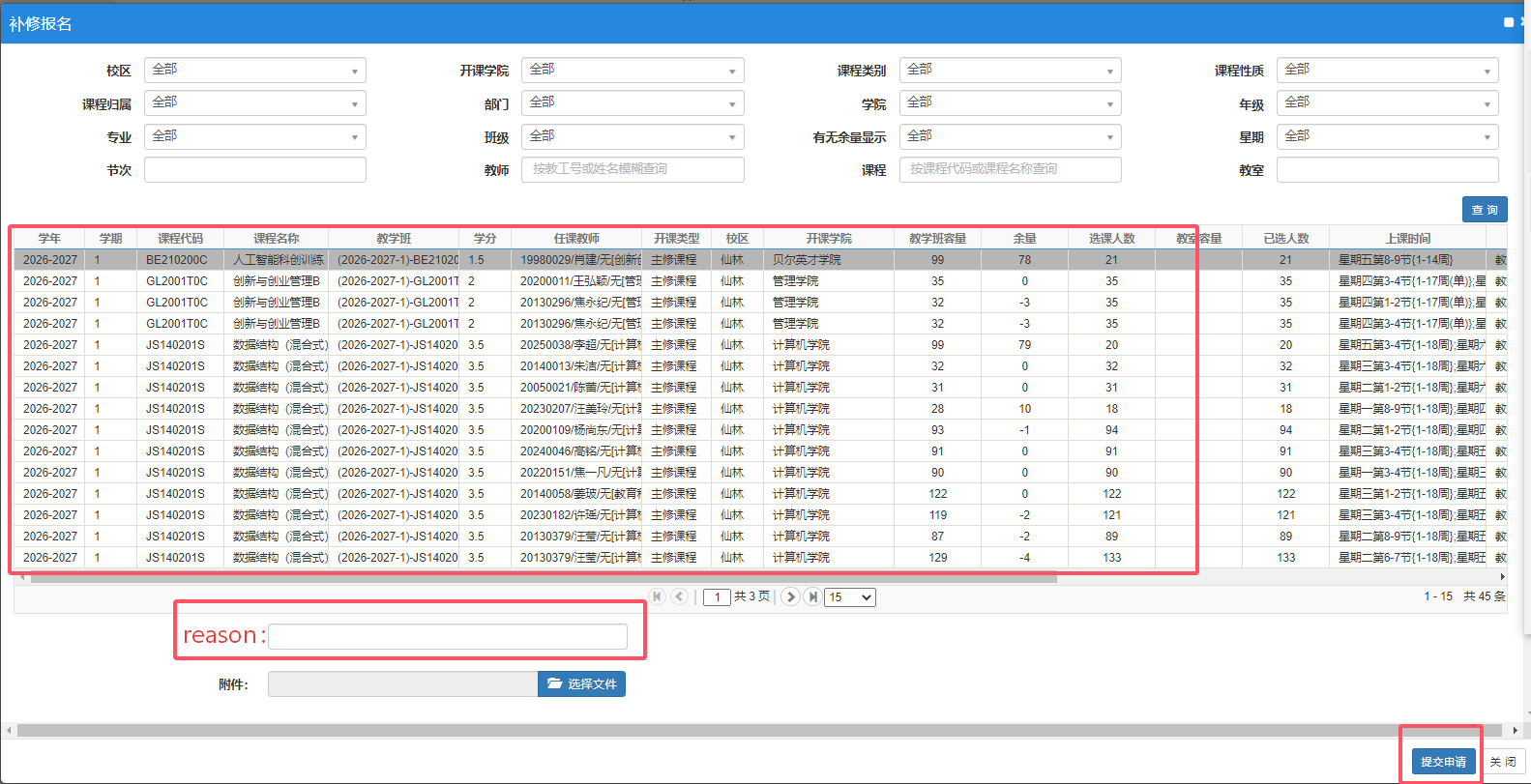
· On the homepage, go to Teaching Program Registration → Make-up.
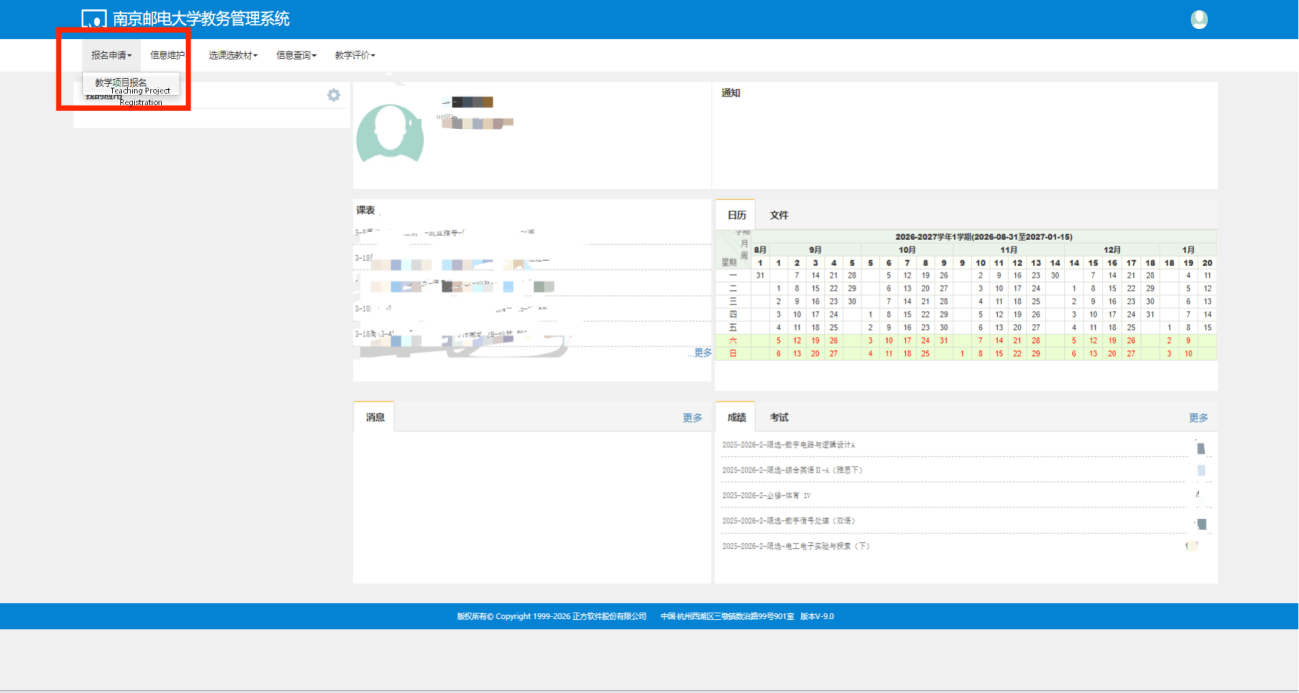
· If your course is not listed, contact your college teaching secretary to add it.
· Select the course, write the reason, and submit.
· Contact your college teaching secretary to complete the review.
12. Check Your Timetable After Selection
· Go to Information Inquiry → Personal Timetable Inquiry.
· Check your timetable regularly for updates.
· Pay attention to practical courses and courses without fixed weekly schedules.
Note: This guide is based on the 2026-2027 Academic Year, First Semester system. Follow the actual system display if changes occur.
---
